Why Is Google Chrome Get Stuck on the Loading Screen?
Whenever Chrome keeps loading but never opens a page, it’s usually one of a handful of things: a corrupted browser cache, a Domain Name System failure, a hardware acceleration bug, or a firewall quietly blocking the connection. The good news is that the majority of cases are solvable without reinstalling anything, so long as you know what to test first.
This article walks through every common scenario, including Chrome pages that won’t load but the internet works, a Chrome tab stuck spinning, Chrome loading some websites but not others, Chrome that stopped loading right after a browser update, a site that won’t open in Chrome but works fine in Edge or Firefox, and Chrome opening a blank page instead of the website. No matter if you use Windows, Android, the same core checklist applies.
Common Causes Chrome Gets Stuck
Before jumping into fixes, it helps to know which part of the process is failing. Opening a website in Chrome depends on multiple layers working together: Chrome sends a request to a DNS server to translate the domain name into an IP address, then requests data from the website’s hosting server, runs any extensions or scripts attached to the tab, and finally displays the content on your screen. If a request gets stuck anywhere along the way, the result is a blank white screen that most people describe as “Chrome not opening at all.”
The usual suspects include: a bloated Chrome cache and cookies, a buggy browser extension, a misconfigured DNS setting, a VPN or proxy blocking rendering, leftover files from a recent update, and temporary downtime on the site you’re trying to reach. Pinpointing which category the problem falls into makes the fix much faster.
Causes, Symptoms, and Quick Fixes for Chrome Loading Problems
| Possible Cause | Common Symptom | Quick Fix |
|---|---|---|
| Corrupted Chrome cache/cookies | Chrome works on other devices but not this one | Use a hard refresh (Ctrl+Shift+R) |
| Buggy ad blocker | Site loads fine in Incognito mode | Turn off ad blockers temporarily |
| DNS lookup failure | Some sites load in Chrome, others never do | Restart the router and try again |
| Broken Chrome profile | Problem started right after an update | Reinstall Chrome to the latest version |
| VPN, proxy, or antivirus interference | Chrome is blocked but other browsers aren’t | Disable VPN/proxy and reload |
| Site overloaded with traffic | The site fails to load in every browser, not just Chrome | Check the site’s status on a service like Downdetector |
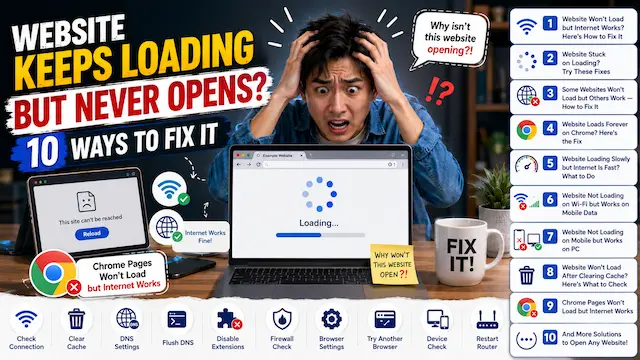
10 SimpleWays to Fix Chrome Stuck on Loading Screen
1. Reset Chrome’s Browsing Data
An overloaded or corrupted Chrome cache is often the first reason a page gets stuck loading even when your internet connection is perfectly normal. Open chrome://settings/clearBrowserData, clear cached images and files along with cookies, then restart Chrome completely before trying to open the site again.
2. Test the Site in Incognito Mode
Opening the page in Incognito mode disables extensions and skips cached data automatically. If the page opens fine in this mode, the issue is almost certainly related to an extension or stored site data, which explains why a site won’t load but other browsers work.
3. Disable Extensions One by One
Certain Chrome extensions can mistakenly block essential parts of a website, causing Chrome to hang indefinitely. Go to chrome://extensions and disable each one at a time, reloading the page after each one to identify the exact extension causing the conflict.
4. Switch to a Public DNS Server
Since the DNS server is responsible for finding the website’s actual location on the internet, a DNS issue can make Chrome never finish loading a page even though the internet connection is working. Try flushing your device’s DNS cache, which often resolves inconsistent loading between different sites.
5. Create a New Chrome Profile
A corrupted user profile inside Chrome can cause random loading failures that are hard to diagnose otherwise. Go to chrome://settings/reset and reset settings to default, then try loading the same site from the fresh profile to confirm whether the profile was the cause.
6. Update Chrome to the Latest Version
An outdated Chrome build can struggle to load modern websites correctly, leaving them stuck mid-load, or the opposite can happen — a recent update finishes installing incorrectly and leaves Chrome half-broken, explaining why Chrome won’t load websites after an update. Make sure automatic updates are turned on, restart the browser, and retry.
7. Turn Off Hardware Acceleration
GPU-based rendering speeds up page loading on most systems, but on some graphics drivers it does the opposite, causing Chrome loading forever on Windows or a tab that never finishes rendering. Go to chrome://settings > System and turn off “Use hardware acceleration when available”, then restart Chrome and reload the page.
8. Review Security Software Rules
Antivirus, firewall, or VPN tools sometimes over-blocks a safe site for a risky one, quietly cutting the connection without any warning while other apps continue to work fine. Pause the antivirus, firewall, or VPN briefly, reload the site in Chrome, and re-enable protection immediately afterward.
9. Restart or Reinstall Chrome Completely
Sometimes, a leftover process silently locks up resources Chrome needs, which shows up as a browser that keeps spinning and won’t open websites. End all Chrome-related processes in Task Manager (or Activity Monitor on Mac), then relaunch; if the problem persists, uninstalling and reinstalling Chrome often resolves it for good.
10. Confirm the Site Isn’t Down for Everyone
Occasionally, the fault lies entirely with the website itself — the hosting server may be overloaded, under maintenance, or temporarily offline. Check a site-status checker to see if other users are reporting the same issue. If it is, there’s nothing to troubleshoot on your side except waiting.
FAQ About Chrome Loading Problems
Chrome keeps loading but the page never opens — what’s wrong?
In most cases this occurs because of one of a handful of common causes: cached data, extensions, DNS problems, or a broken Chrome profile. Working through the checklist above in order will typically reveal the exact source within a few minutes.
My internet is fine but Chrome still won’t open pages, why?
An active internet connection doesn’t guarantee every part of the browser is working as it should. The connection itself can be fine while one specific part of Chrome is the real bottleneck.
How do I fix Chrome when it’s stuck loading?
The fastest checklist is: clear cache and cookies, try Incognito mode, disable extensions one by one, flush DNS, create a fresh profile, check for updates, disable hardware acceleration, pause your firewall/VPN, and restart Chrome completely. Following this sequence fixes the vast majority of stuck-loading cases.
Why does Chrome load some websites but not others?
If the problem is limited to specific sites, the cause is rarely your general internet connection — it typically points to DNS resolution, security software rules, or a problem on that particular website’s end.
Why won’t Chrome load websites after an update?
An update can sometimes leave leftover files or a half-applied change, which temporarily breaks page rendering until Chrome is relaunched. Fully closing and reopening Chrome, or resetting to default settings usually clears it up.
Why is Chrome loading forever on Windows specifically?
This is often tied to outdated GPU drivers, leftover Chrome background tasks, or Windows-specific network settings. Turning off hardware acceleration and restarting fully clears up the majority of Windows-specific hangs.
Why does the site open in Edge/Firefox but not Chrome?
Since other browsers work fine, the network usually isn’t to blame — check Chrome’s cache, extensions, and security settings specifically, since the same network is clearly working for other browsers.
Why is Chrome completely stuck and unresponsive?
Start by ending all Chrome processes in Task Manager and relaunching, since leftover processes are often what causes total unresponsiveness. If the problem continues, try flushing DNS and disabling extensions next.
Why does Chrome open a blank page instead of the website?
An empty tab typically indicates the connection to the server was made but the content failed to render, often because of a rendering conflict or damaged local data. Testing in Incognito mode and clearing cached data fixes the majority of blank-page issues.
Conclusion
Chrome that keeps loading but never opens a page is frustrating, but in the vast majority of cases fixable once you know where to look. Start with the simplest fixes, then work your way through extensions, DNS, hardware acceleration, and security settings before concluding that the site itself is down. With the steps above, most Chrome loading issues can be resolved without any technical background at all.