
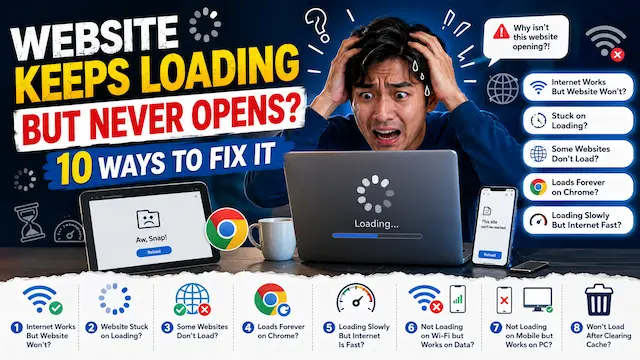
Why Does Your Site Refuse to Fully Load?
Whenever a website won’t load even though the WiFi icon shows full bars, in most cases it comes down to one of a small number of things: a browser-side issue, a Domain Name System failure, an slow-responding hosting server, or a VPN quietly blocking the connection. Fortunately that the majority of cases can be resolved without calling your ISP, provided you check them in the right order.
This guide walks through the situations people search for most, including a website stuck on loading, a website loading slowly even though the internet is fast, a site that won’t load on WiFi but works fine on mobile data, and a page that suddenly breaks after a browser update. No matter if you use Chrome, Edge, or a mobile browser, the same core checklist applies.
Typical Reasons a Website Keeps Loading
Before jumping into fixes, it helps to know which part of the process is failing. A page load involves several steps: your browser sends a request to a DNS server to translate the domain name into an IP address, then requests data from the website’s hosting server, which sends back the page’s files to be displayed on your screen. If any single step in that chain stalls, the result is the endless spinning loader that most people describe as “not opening at all.”
What typically causes this are: outdated browser cache and cookies, an inconsistent WiFi signal, DNS server issues, third-party browser extensions blocking the connection, an outdated browser version, and temporary downtime on the site you’re trying to reach. Pinpointing which category the problem falls into makes the fix far more targeted.
Problem-to-Solution Comparison for a Website That Won’t Load
| Likely Cause | What You’ll Notice | Quick Fix |
|---|---|---|
| Corrupted cache/cookies | One specific site won’t open on this browser | Clear browser cache and cookies, then reload |
| Outdated DNS cache | “DNS_PROBE_FINISHED” or similar error appears | Restart the router and try again |
| Weak WiFi signal | Works fine on mobile data but not WiFi | Restart the router/modem, move closer to it |
| Firewall/antivirus blocking | Site loads fine once VPN is off | Disable VPN/proxy and reload |
| Outdated browser version | Page loads fine in Incognito/Private mode | Disable extensions one by one |
| Website server is down | The site fails to load on every device and network | Wait and retry after some time |
10 ProvenWays to Fix a Website That Keeps Loading but Never Opens
1. Clear Your Browser’s Cache and Cookies
A bloated or outdated browser cache is one of the most common reasons a single site refuses to load while everything else works fine. Open the privacy/history settings menu, remove stored site data, then restart the browser completely before trying to open the site again.
2. Restart Your Router or Modem
A simple router restart clears temporary network glitches that frequently lead to a website loading slowly or failing to open. Turn the router off, wait half a minute, then turn it on again and give it a minute to reconnect before testing the website again.
3. Switch to a Public DNS Server
Because the DNS server is responsible for translating a domain name into the correct server address, a failure at this step can make a site seem to load forever even though the server itself is online. Try flushing your device’s DNS cache, which often resolves “some websites won’t load but others work” type problems.
4. Test the Site in Incognito or Private Mode
Opening the page in Incognito/Private mode disables extensions and skips cached data automatically. If the page opens fine in this mode, you’ve confirmed the problem sits with your regular browser profile, not your network.
5. Disable Browser Extensions One by One
Ad blockers, VPN extensions, and privacy add-ons can mistakenly block essential parts of a website, causing it to hang indefinitely. Disable extensions one at a time and test the site after disabling each to identify which add-on is responsible.
6. Turn Off Your VPN or Proxy
A VPN or proxy connection can route your traffic through a slow or blocked server, which leads to a page that loads forever. Disconnect the VPN for a moment and try loading the site again on a direct connection.
7. Review Security Software Rules
Antivirus or firewall tools sometimes over-blocks a safe site for a risky one, quietly cutting the connection without any warning. Pause the antivirus or firewall briefly, reload the site, and turn security back on right after testing.
8. Switch Between WiFi and Mobile Data
If a site won’t load on WiFi but works on mobile data, the problem is network-specific, not the website itself. Toggle WiFi off and use mobile data to confirm whether the issue follows the network or the device; this also helps explain why a website loads on mobile but not on PC, or the other way around.
9. Update Your Browser to the Latest Version
An outdated browser can struggle to load pages built with newer web technologies, causing them to hang or freeze. Check for updates in your browser’s settings menu, and if the issue continues even after updating, consider reinstalling the browser entirely.
10. Confirm the Site Isn’t Down for Everyone
Occasionally, the fault lies entirely with the website itself — the hosting server may be overloaded, under maintenance, or temporarily offline. Use a third-party tool like Downdetector or IsItDownRightNow to see if other users are reporting the same issue. In that case, there’s nothing to troubleshoot on your side except waiting.
FAQ About Pages Stuck on Loading
Why does my website keep loading but never open?
This usually happens because of one of a handful of common causes: cached data, DNS problems, security software interference, or server-side downtime. Testing each cause one by one usually identifies the exact source within a few minutes.
My WiFi is connected but the site still won’t open — why?
Just because your WiFi shows “connected” doesn’t mean every service along the way is working. The connection itself can be fine while one specific link in the chain is what’s actually causing the delay.
Why does only one specific site fail to open?
If the problem is limited to specific sites, the cause is rarely your general internet connection — it’s more likely a DNS issue, a blocked domain from your firewall/antivirus, or an issue specific to that site’s server.
My connection tests fast, so why is the page still slow to load?
High internet speed doesn’t guarantee quick website loading, because loading time also depends on server response speed, page size, and background processes running on your device.
Why does a website work on WiFi but not mobile data, or the other way around?
Each network uses a different DNS provider and routing path, so a block or DNS problem on one network won’t always show up on the other. Comparing results between the two helps confirm whether the issue is network-specific or related to the device itself.
Why does a website load fine on mobile but not on a PC (or vice versa)?
This points to a device-level issue rather than a network problem — check the browser version, cached data, and security settings on whichever device is having trouble.
Why did my website stop loading right after I cleared the cache?
Clearing cache resets stored session data, so some slowdown immediately following a cache clear is expected as the browser rebuilds this data from scratch. If it still won’t load after trying again, a router restart or browser restart usually resolves it.
Conclusion
A website that keeps loading but never opens is frustrating, but in the vast majority of cases solvable once you check the right things in order. Begin with clearing cache and restarting your router, then work your way through DNS, VPN, extensions, and firewall settings before concluding that the site itself is down. Using this checklist, most loading issues can be resolved without any technical background at all.